back LabelBOT
Learn how LabelBOT works and what it can do.
LabelBOT is the automatic classification assistant of BIIGLE. It suggests labels for new annotations based on similar existing annotations, so you no longer have to select the labels yourself. This manual article explains how you can use LabelBOT and how it works under the hood.
How to use LabelBOT
To create a new annotation, you normally have to select a label from the label trees tab first and then one of the shape drawing tools. When LabelBOT is active, the first step is no longer necessary. To enable LabelBOT, click on the button in the label trees tab. When it is used for the first time, LabelBOT can take a couple of minutes to initialize, as shown by the indicator on the bottom right of the image view (where you usually see the selected label name). After initialization, LabelBOT becomes ready and you can start creating annotations.
Whenever a new annotation is created while LabelBOT is active, it will start computing. Once finished, an overlay will be shown with the top three suggested labels for the annotation. The first suggested label is automatically selected for the new annotation. If left alone for a while, the first suggested label will automatically be confirmed and the overlay will close. If the first suggested label is not correct, you can also select the second or third label with a click or keyboard shortcut. If none of the suggested labels are correct, you can choose a different label from the typeahead at the bottom of the overlay.
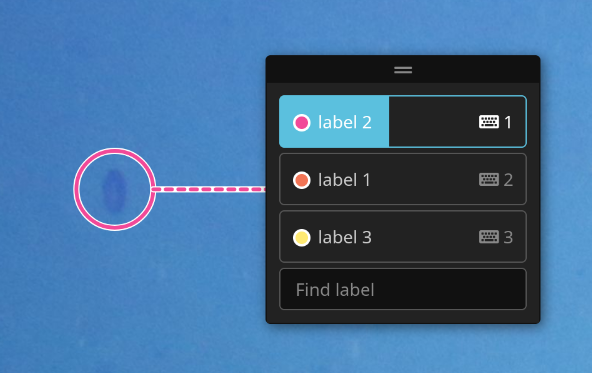
The automatic timeout for confirming the first suggested label can be configured and is cancelled on any interaction with the overlay. The timeout is also cancelled, confirming the first suggested label, when the next annotation is created.
A LabelBOT overlay can be dragged to a different position, which can be handy if you create several new annotations in a row and have to review multiple overlapping overlays. To drag an overlay, grab the top edge with the cursor and release it at a different position. A dashed line indicates which overlay belongs to which annotation.
Be sure to check out all available LabelBOT keyboard shortcuts for an efficient workflow!
How LabelBOT works
When a new object is annotated, LabelBOT searches for similar existing annotations that mark similar-looking objects. It selects up to three different labels of similar annotations as suggestions for the LabelBOT overlay. The first suggested label is automatically chosen for the new annotation but it can be changed in the LabelBOT overlay.
The search for similar existing annotations is performed on all annotations of all available label trees of the project. Labels of label trees that are not attached to the project or labels without existing annotations are never suggested. The accuracy of the suggested labels increases with an increasing number of existing annotations to search through. The number of existing annotations required for a good LabelBOT accuracy varies from label to label, depending on the visual diversity of the objects. Generally, the accuracy will likely be low if less than 100 annotations exist for a given label.
As LabelBOT works better with more existing annotations as examples, the publishing and sharing of label trees across projects is highly beneficial. The LabelBOT search uses a compressed feature-representation of annotated objects which means that no actual image contents will be shared with members of other projects.
Some part of the computation for LabelBOT is done in your browser. This can take several seconds on low-end or older machines. The computation will be dramatically faster if there is access to a dedicated graphics card via WebGPU. Access to WebGPU can also depend on the web browser and operating system. You can check here if WebGPU is available in your browser.